Enterprise security architectures demand seamless authentication. For organizations leveraging the Dassault Systèmes 3DEXPERIENCE platform, manual password management across multiple environments is a vulnerability and an administrative burden. Implementing Single Sign-On (SSO) centralizes user identity management, enforces conditional access policies, and streamlines user provisioning.
This technical deep dive provides a step-by-step blueprint for configuring SAML 2.0 federation between the 3DEXPERIENCE 3DCompass (Passport) identity module and Microsoft Azure Active Directory (now Microsoft Entra ID).
1. Federation Architecture Topology
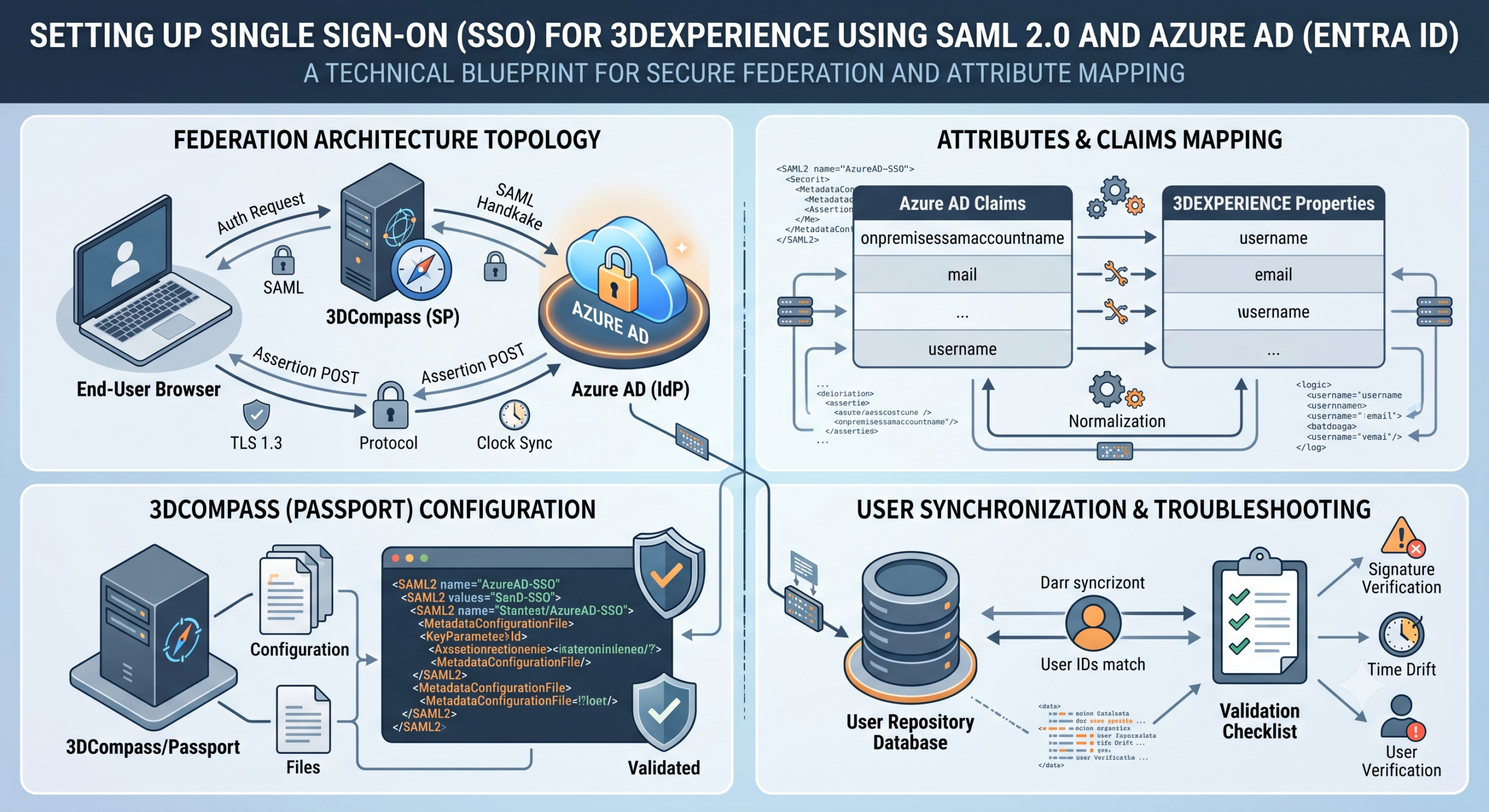
The 3DEXPERIENCE platform uses its central authentication module, 3DCompass (Passport), as a SAML Service Provider (SP). Microsoft Azure AD acts as the Identity Provider (IdP).
When a user attempts to access a platform service (like 3DSpace or 3DPlay), the system handles authentication through a standard SAML 2.0 web browser redirect flow.
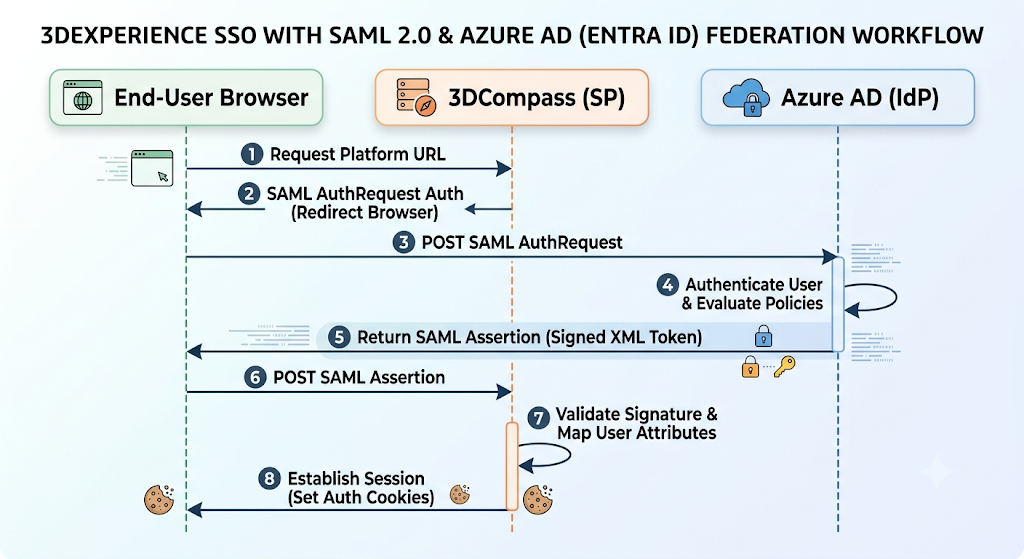
Protocol Workflow Details
- Initial Access: The user targets a protected endpoint, such as
[https://plm.enterprise.com/3dspace](https://plm.enterprise.com/3dspace). - SP Initiation: 3DCompass intercepts the unauthenticated request, generates a cryptographic
<samlp:AuthnRequest>, base64-encodes it, and issues a302 Redirectback to the browser pointing to the Azure AD single sign-on URL. - IdP Handshake: The browser forwards the request to Azure AD. If the user does not have an active Microsoft session, they are prompted for corporate credentials (including Multi-Factor Authentication).
- Token Generation: Upon validation, Azure AD generates an XML-based SAML assertion containing user claims (e.g., Email, UPN, Name ID). This token is cryptographically signed using the Azure AD private token-signing key.
- Assertion Consumed: The browser receives the token and POSTs it back to the 3DCompass Assertion Consumer Service (ACS) endpoint.
- Session Creation: 3DCompass verifies the XML signature using the public key from the Azure AD metadata, extracts the user ID, verifies the matching account inside the platform database, and issues the 3DEXPERIENCE platform session cookies.
2. Infrastructure Prerequisites Matrix
Before beginning configuration, ensure your environment meets the structural network and security requirements.
| Dependency Type | Component Requirement | Purpose / Technical Scope |
| Identity Provider | Microsoft Azure AD (Entra ID) tenant | Acts as the authoritative source of identity. Must have Cloud Application Administrator roles. |
| Service Provider | 3DEXPERIENCE R202X On-Premise / Cloud | Native access to system topology configuration directories (3DCompass runtime instance). |
| Cryptography | TLS 1.3 / X.509 RSA 2048-bit Certificates | Required for signing the SAML payloads and ensuring end-to-end transport channel encryption. |
| Network | Clock Synchronization (NTP Enabled) | System clocks on the 3DCompass application host and Azure AD must match within 3 minutes to avoid skew rejections. |
3. Configuration Step-by-Step
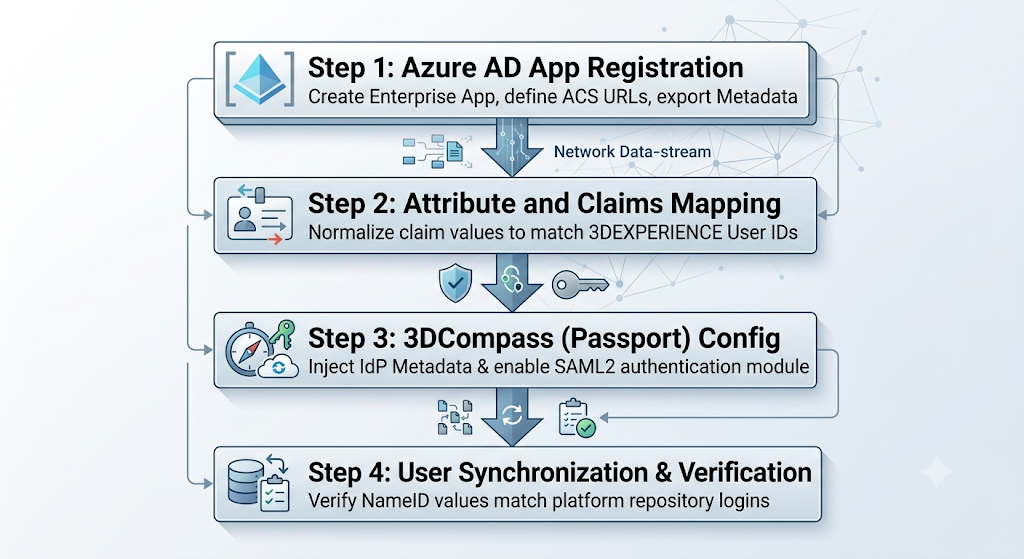
Step 1: Configuring Azure AD (Entra ID) as the Identity Provider
To begin, you must establish an application anchor point within your Microsoft Entra portal.
- Navigate to the Microsoft Entra admin center and go to Identity > Applications > Enterprise applications.
- Select New application, then click Create your own application.
- Name the application (e.g.,
3DEXPERIENCE On-Premise SSO) and choose Integrate any other application you don’t find in the gallery (Non-gallery). - Once created, open the application dashboard and navigate to Single sign-on > SAML.
Edit the Basic SAML Configuration box with the following parameters, adjusting for your specific corporate fully qualified domain name (FQDN):
- Identifier (Entity ID):
[https://plm.enterprise.com/3dcompass](https://plm.enterprise.com/3dcompass) - Reply URL (Assertion Consumer Service URL):
[https://plm.enterprise.com/3dcompass/saml/SSO](https://plm.enterprise.com/3dcompass/saml/SSO) - Sign on URL:
[https://plm.enterprise.com/3dcompass/login](https://plm.enterprise.com/3dcompass/login)
Scroll down to SAML Certificates and download the Federation Metadata XML. Save this file as azure-idp-metadata.xml; you will need it to configure the 3DSpace/3DCompass nodes.
Step 2: Attribute & Claims Mapping
The 3DEXPERIENCE platform requires incoming SAML assertions to map cleanly to the platform database user repository. By default, 3DEXPERIENCE relies on a unique, case-sensitive internal user login string (often matching a corporate short-name or windows user account ID, like jdoe).
Within the Azure AD Attributes & Claims panel, map the target identifying attribute to the Unique User Identifier (Name ID) claim.
Claim Name                      Source Attribute
────────────────────────────────────────────────────────────────────────────
nameidentifier (NameID)  ───>   user.onpremisessamaccountname (or user.mail)
givenname                ───>   user.givenname
surname                  ───>   user.surname
email                    ───>   user.mail
If your local 3DEXPERIENCE system accounts are provisioned using email addresses, map the Name ID format to
user.mail. If they rely on alphanumeric login handles, useuser.onpremisessamaccountname. A mismatch here will cause a successful Azure AD login to fail with a “User not found in platform repository” error in 3DSpace.
Step 3: Configuring the 3DCompass (Passport) Server
Next, configure the 3DEXPERIENCE middle tier to recognize the new trust relationship. Navigate to the file system hosting your 3DCompass configuration instance.
Locate your primary Passport deployment framework file, typically found under:
/opt/DS/3DCompass/linux_a64/resources/config/passport.config.allocator.xml (or the equivalent Windows installation path).
Back up this file before editing. Open it and define the SAML 2.0 Identity Provider configuration block:
XML
<?xml version="1.0" encoding="UTF-8"?>
<PassportConfig>
    <!-- Core Crypto Anchor -->
    <Crypto platformKey="EncryptionTokenSecretKey2026!Format">
        <CipherAlgorithm>AES/GCM/NoPadding</CipherAlgorithm>
    </Crypto>

    <!-- SAML 2.0 Federation Configuration Block -->
    <AuthenticationModules>
        <SAML2 name="AzureAD-SSO" enabled="true">
            <Description>Corporate Azure AD Identity Provider</Description>
            <ServiceProvider>
                <!-- Matches the EntityID registered inside the Azure Portal -->
                <EntityId>https://plm.enterprise.com/3dcompass</EntityId>
                <AssertionConsumerServiceUrl>https://plm.enterprise.com/3dcompass/saml/SSO</AssertionConsumerServiceUrl>
                <NameIdFormat>urn:oasis:names:tc:SAML:1.1:nameid-format:unspecified</NameIdFormat>
                <AllowCreate>false</AllowCreate>
            </ServiceProvider>
            <IdentityProvider>
                <!-- Reference to the local copy of the downloaded Microsoft Metadata -->
                <MetadataConfigurationFile>/opt/DS/3DCompass/config/saml/azure-idp-metadata.xml</MetadataConfigurationFile>
                <WantAssertionsSigned>true</WantAssertionsSigned>
                <WantResponsesSigned>false</WantResponsesSigned>
                <SignatureAlgorithm>http://www.w3.org/2001/04/xmldsig-more#rsa-sha256</SignatureAlgorithm>
            </IdentityProvider>
            <Mapping>
                <!-- Explicit claims tracking to platform columns -->
                <UserMappingClaim attribute="NameID" platformProperty="username"/>
                <UserMappingClaim attribute="email" platformProperty="email"/>
            </Mapping>
        </SAML2>
    </AuthenticationModules>
</PassportConfig>
Restart your 3DCompass application service to apply the configuration changes:
Bash
systemctl restart 3dexp_passport.service
4. Troubleshooting and Validation Blueprints
Once configuration is complete, test the authentication flow to ensure signatures match and attributes map correctly.
1. Intercepting the SAML Payload
Use a browser developer console or a dedicated SAML tracer extension to capture the assertion payload POSTed from Azure AD back to the 3dcompass/saml/SSO endpoint. Verify that the XML payload matches the required structure:
XML
<saml2p:Response ID="_a1b2c3d4-e5f6-7a8b-9c0d-1e2f3a4b5c6d" Version="2.0"
    IssueInstant="2026-07-12T18:15:00.000Z"
    Destination="https://plm.enterprise.com/3dcompass/saml/SSO"
    xmlns:saml2p="urn:oasis:names:tc:SAML:2.0:protocol">
    <saml2:Issuer xmlns:saml2="urn:oasis:names:tc:SAML:2.0:assertion">https://sts.windows.net/tenant-id-string/</saml2:Issuer>
    <saml2p:Status>
        <saml2p:StatusCode Value="urn:oasis:names:tc:SAML:2.0:status:success"/>
    </saml2p:Status>
    <saml2:Assertion ID="_assertion_id" IssueInstant="2026-07-12T18:15:00.000Z"
        Version="2.0" xmlns:saml2="urn:oasis:names:tc:SAML:2.0:assertion">
        <saml2:Issuer>https://sts.windows.net/tenant-id-string/</saml2:Issuer>
        <saml2:Subject>
            <!-- The value below MUST match the 3DEXPERIENCE username key -->
            <saml2:NameID Format="urn:oasis:names:tc:SAML:1.1:nameid-format:unspecified">jdoe</saml2:NameID>
            <saml2:SubjectConfirmation Method="urn:oasis:names:tc:SAML:2.0:cm:bearer">
                <saml2:SubjectConfirmationData Recipient="https://plm.enterprise.com/3dcompass/saml/SSO"/>
            </saml2:SubjectConfirmation>
        </saml2:Subject>
        <!-- Document Signature Blocks Follow... -->
    </saml2:Assertion>
</saml2p:Response>
2. Common Integration Errors
- SAML Error Code:
Cryptographic signature verification failed- Root Cause: The token-signing certificate downloaded from Azure AD has rotated or does not match the file defined inside
<MetadataConfigurationFile>. - Solution: Re-download the Entra ID federation XML metadata file and overwrite the existing configuration file on the server.
- Root Cause: The token-signing certificate downloaded from Azure AD has rotated or does not match the file defined inside
- SAML Error Code:
InvalidTimeRange (Condition check failed)- Root Cause: The host machine’s internal clock has drifted relative to the global Microsoft reference times.
- Solution: Force an authoritative Network Time Protocol synchronization sync using
chronydorntpd:Bashchronyc tracking chronyc -a makestep
Implementing this SAML 2.0 integration secures access to your 3DEXPERIENCE environment and ensures the deployment aligns with corporate enterprise identity management standards.