Engineering organizations are increasingly adopting a “best of both worlds” approach to Product Lifecycle Management (PLM). They retain powerful, on-premise CAD applications (like SolidWorks, CATIA V5, or NX) for their complex heavy lifting, while leveraging the Dassault Systèmes 3DEXPERIENCE (3DX) Cloud platform for collaboration, simulation, and business logic.
This hybrid model—retaining legacy on-prem CAD data on-premise while using a SaaS cloud as the collaboration layer—is highly effective. However, it introduces significant infrastructure challenges. How do you securely and efficiently allow your engineering workstations to “talk” to a public cloud tenant while protecting your intellectual property behind enterprise-grade firewalls?
This article provides the comprehensive blueprint for configuring that connection, focusing on proxies, firewall rules, and the necessary integration infrastructure (specifically the File Collaboration Server).
1. The Core Infrastructure Blueprint: The Hybrid Topology
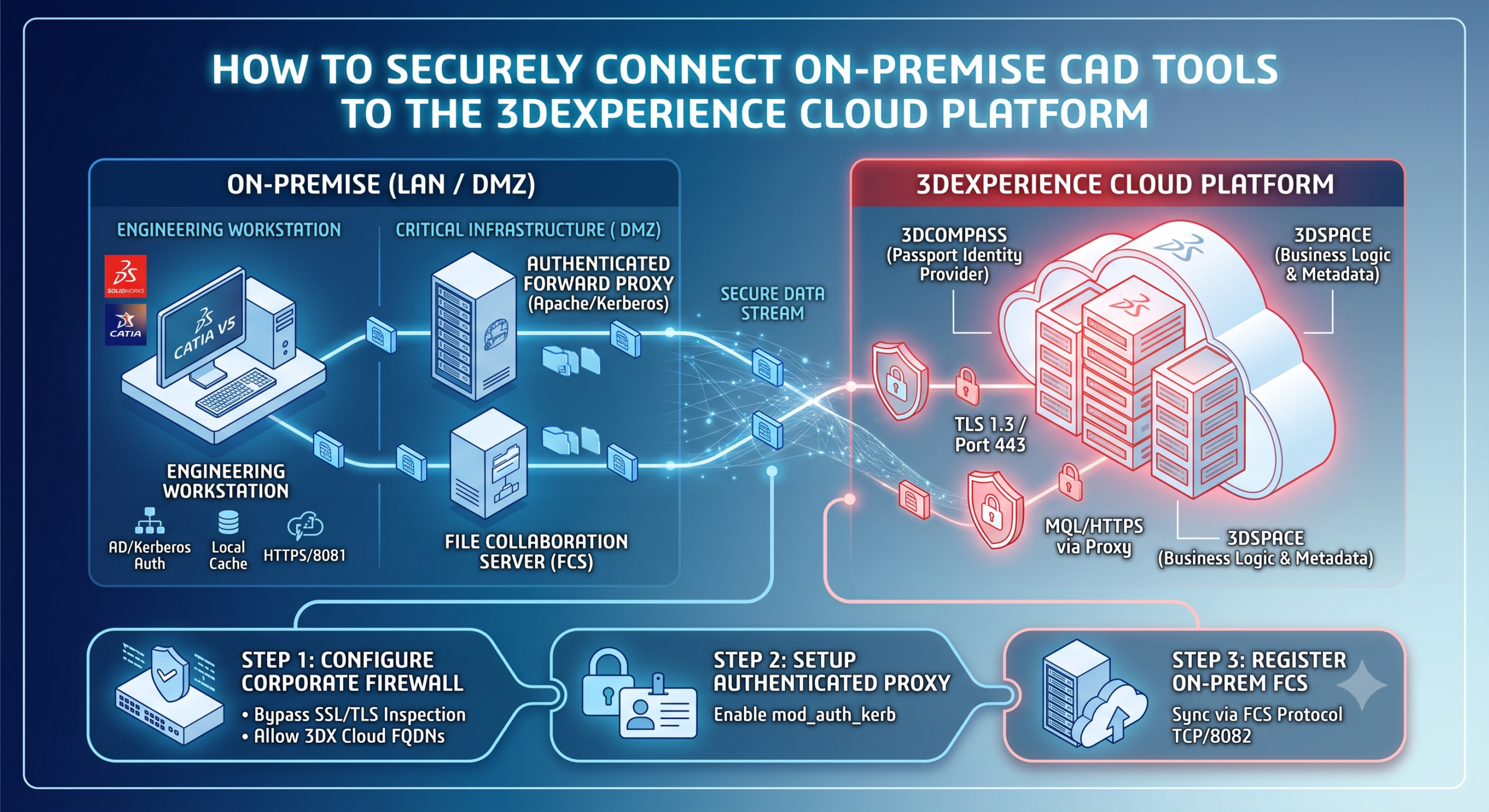
To understand the connection process, we must first visualize the data flow. A successful hybrid CAD-to-Cloud deployment isolates specific traffic types.
The Problem: A Single Point of Failure
Standard users often configure a single Internet gateway. For standard web traffic, this is fine. For heavy CAD data, it is disastrous. Without dedicated infrastructure, large CATIA assemblies or SolidWorks models will choke the regular internet bandwidth, causing critical timeouts and corrupting data transfers. Furthermore, forcing workstations to communicate directly with the cloud often requires poking thousands of unsafe holes in the corporate firewall.
The Solution: Component-Based Architecture
A resilient, secure topology maps different communication paths to optimized infrastructure. The critical component is the on-premise File Collaboration Server (FCS). The FCS acts as a highly optimized file vault that caches and streams physical files on your local area network (LAN), while only sending lightweight metadata up to the 3DX Cloud.
Code snippet
graph TD
    %% Define styles for clarity
    classDef workstation fill:#e1f5fe,stroke:#01579b,stroke-width:2px;
    classDef cloud fill:#ffebee,stroke:#b71c1c,stroke-width:2px,stroke-dasharray: 5 5;
    classDef onprem fill:#e8f5e9,stroke:#1b5e20,stroke-width:2px;

    %% Subgraph: Engineering Workstation LAN
    subgraph LAN [Workstation LAN (192.168.1.0/24)]
        CAD[On-Prem CAD Workstation]:::workstation
    end

    %% Subgraph: DMZ / Server VLAN
    subgraph DMZ [Corporate DMZ / Server VLAN]
        FW1[External Firewall]
        PRX[Authenticated Forward Proxy]:::onprem
        FCS[File Collaboration Server (FCS)]:::onprem
    end

    %% Subgraph: 3DEXPERIENCE Cloud
    subgraph 3DX_Cloud [3DEXPERIENCE Public Cloud Tenant]
        Passport[3DCompass / Passport Auth]:::cloud
        3DSpace[3DSpace / Business Logic]:::cloud
        CloudVault[3DEXPERIENCE Cloud Vault]:::cloud
    end

    %% Key Connection Flows

    %% Path 1: Authentication
    CAD -->|1. TLS 1.3 / Port 443 via Proxy| Passport

    %% Path 2: Metadata / Search
    CAD -->|2. MQL / HTTPS via Proxy| 3DSpace

    %% Path 3: Local File Data
    CAD <-->|3. HTTPS / Port 8081 (Internal)| FCS

    %% Path 4: Secure Data Sync (Server-to-Server)
    FCS <-->|4. FCS Protocol (TCP 8082)| CloudVault

    %% Formatting connections
    FW1 -.-> PRX
    FW1 -.-> FCS

    linkStyle 0 stroke-width:3px,fill:none,stroke:red;
    linkStyle 1 stroke-width:3px,fill:none,stroke:orange;
    linkStyle 2 stroke-width:3px,fill:none,stroke:green;
    linkStyle 3 stroke-width:3px,fill:none,stroke:blue;
Understanding the Flowchart
- Authentication Path (Red): The CAD application authenticates against the 3DCompass/Passport service (Cloud-hosted Identity Provider). All credentials travel securely via an Authenticated Forward Proxy through the firewall on Port 443.
- Metadata Path (Orange): When searching or browsing data, the CAD user queries the 3DSpace service in the cloud. This lightweight Matrix Query Language (MQL) data also uses the proxy on Port 443.
- Local File Access (Green): This is the game-changer. When a user checks out a file, it is requested from the cloud, but served instantly from the On-Premise FCS. Physical file transfers never leave the LAN.
- Secure Data Sync (Blue): When a user checks in a file, it goes directly to the local FCS. In the background (asynchronously), the FCS securely pushes this encrypted file to the 3DEXPERIENCE Cloud Vault, optimizing bandwidth and handling connection retries automatically.
2. Step 1: Configuring the Corporate Firewall
The firewall must prioritize security, but it cannot interfere with heavy, encrypted file streams. Misconfigured traffic inspection is the single most common cause of 3DX integration failure.
Rule 1: SSL/TLS Inspection Bypasses
Many modern firewalls (Palo Alto, Fortinet) perform Deep Packet Inspection (DPI) or “SSL/TLS Decryption” on outbound traffic to block malicious content. This must be disabled for all 3DEXPERIENCE cloud FQDNs (Fully Qualified Domain Names). The FCS data streams are often very long and pre-encrypted; re-encrypting them via a firewall proxy is redundant and will introduce significant latency, causing timeouts.
Recommended Bypasses (by FQDN):
*.3dexperience.3ds.com*.3dcompass.3ds.com*.3dspace.3ds.com*.fcs.3ds.com
Rule 2: Establishing Outbound Connections (DMZ to Internet)
Configure rules that allow established connections from your server infrastructure to the cloud.
JSON
/* Example: Outbound Allow Rule (Security First Architecture) */
{
    "Rule": "ALLOW-OnPrem_Infrastructure-TO-3DX_Cloud",
    "Source": {
        "Zones": [ "DMZ_VLAN" ],
        "IP_Addresses": [ "10.0.1.10 (Proxy)", "10.0.1.11 (FCS)" ]
    },
    "Destination": {
        "Zones": [ "Untrusted_Internet" ],
        "FQDNs": [ "tenant-name.3dexperience.3ds.com" ]
    },
    "Service": {
        "Protocols": [ "TCP/6" ],
        "Ports": [ "443" ]
    },
    "Action": "ALLOW"
}
3. Step 2: Configuring the Authenticated Forward Proxy
The forward proxy is the gatekeeper for user authentication and metadata. Instead of giving every workstation direct internet access, the CAD applications send their requests through the proxy.
Why Use an Authenticated Proxy?
The 3DEXPERIENCE platform requires all connected clients to provide a unique machine ID and valid user token. However, standard forward proxies just pass traffic. An authenticated proxy forces the workstation to prove its identity locally (e.g., via Active Directory/Kerberos) before the proxy will forward the request to the Cloud. This adds a critical layer of access control.
Example: Apache httpd Forward Proxy Configuration
Apache mod_proxy is a reliable choice. Below is a snippet showing the required proxy directives, explicitly allowing communication only to the 3DX cloud.
Apache
# /etc/httpd/conf.d/3dx-authenticated-proxy.conf

<VirtualHost *:443>
    ServerName secure-proxy.enterprise.com

    # Enable SSL Termination (if desired, but 3DX uses TLS)
    # SSLEngine on
    # SSLCertificateFile /path/to/server.crt

    # Load Proxy Modules
    LoadModule proxy_module modules/mod_proxy.so
    LoadModule proxy_http_module modules/mod_proxy_http.so
    LoadModule proxy_connect_module modules/mod_proxy_connect.so

    # ----------------------------------------------------------------------
    # Core Proxy Rules
    # ----------------------------------------------------------------------
    ProxyRequests On
    ProxyVia Block

    # Allow the forward proxy to make outbound connections
    <Proxy "*">
        # Enable TLS 1.2+ security for proxy outbound
        SSLProxyEngine On
        SSLProxyVerify none
        SSLProxyCheckPeerCN off
        SSLProxyCheckPeerName off
    </Proxy>

    # ----------------------------------------------------------------------
    # Access Control: Explicitly define what can be accessed
    # ----------------------------------------------------------------------
    <ProxyMatch ".*\.3dexperience\.3ds\.com.*">
        Require ip 192.168.1.0/24  # Example: Allow local LAN workstations
    </ProxyMatch>

    # BLOCK everything else by default
    <ProxyMatch ".*">
        Order Deny,Allow
        Deny from all
    </ProxyMatch>

    # ----------------------------------------------------------------------
    # Authenticate via Active Directory (mod_auth_kerb)
    # ----------------------------------------------------------------------
    # <Location / >
    #   AuthType Kerberos
    #   AuthName "Active Directory Authentication"
    #   KrbMethodNegotiate On
    #   KrbMethodK5Passwd Off
    #   KrbAuthRealms ENTERPRISE.COM
    #   Krb5KeyTab /etc/httpd/conf/httpd.keytab
    #   Require valid-user
    # </Location>

</VirtualHost>
4. Step 3: Configuring the Integration Infrastructure (On-Prem FCS)
The most critical step is deploying and registering the File Collaboration Server (FCS). Without this server-to-server data movement, the hybrid architecture cannot function correctly.
1. Register the FCS on the 3DX Cloud Tenant
Your 3DSpace (Business Logic) service must know where the physical data is stored. You register your on-premise FCS within the cloud tenant interface.
- Log into your 3DEXPERIENCE Cloud Platform as an administrator.
- Navigate to the Platform Management dashlet.
- Add a new File Collaboration Server.
- Enter the details:
- Name:
Main_FCS_OnPrem - External FQDN:
fcs.enterprise.com - External Port:
443(This is how the Cloud reaches the FCS). - Internal LAN URL:
[https://10.0.1.11:8081](https://10.0.1.11:8081)(This is how Workstations reach the FCS).
- Name:
2. Configure the FCS Data Sync
The FCS server requires its own internal database to track which files are currently cached locally and which have been pushed to the cloud vault. This is often an Oracle or MS SQL instance hosted on the same server VLAN (e.g., RAC-1521).
3. Asynchronous Data Sync Protocol (TCP 8082)
The FCS pushes files up to the cloud using the 3DS proprietary File Vault Protocol. While metadata uses Port 443, the physical file sync uses its own optimized stream on TCP Port 8082. This traffic must be optimized by the firewall (no packet shaping or redundancy reduction).
JSON
/* Example: Outbound Allow Rule (FCS Protocol) */
{
    "Rule": "ALLOW-FCS-Protocol-Sync",
    "Source": {
        "Zones": [ "DMZ_VLAN" ],
        "IP_Addresses": [ "10.0.1.11 (FCS)" ]
    },
    "Destination": {
        "Zones": [ "Untrusted_Internet" ]
        /* Specific Cloud Vault IP ranges can be used if provided by 3DS */
    },
    "Service": {
        "Protocols": [ "TCP/6" ],
        "Ports": [ "8082" ]
    },
    "Action": "ALLOW"
}
5. Summary and Best Practices for Maintaining Security
Connecting an on-premise CAD workstation to the 3DEXPERIENCE Cloud requires moving beyond “allow everything on Port 80/443.” It demands infrastructure that respects data types.
Key Takeaways for SECURE Configuration:
- Implement an FCS Server: Do not compromise. Direct CAD-to-Cloud file transfer is too slow and insecure. The FCS isolates the vast majority of physical file I/O to your LAN.
- Bypass SSL Inspection on Firewalls: TLS inspection introduces latency that breaks large encrypted data streams. Prioritize performance for
*.3dexperience.3ds.comand related FQDNs. - Use Authenticated Proxies: Standard proxies just pass traffic. Authenticated proxies provide local authentication (Kerberos) before traffic reaches the public cloud.
- Segment Your Network: Isolate the FCS and the Proxy in a DMZ or dedicated Server VLAN. This protects your CAD workstations if your cloud tenant is compromised.
- Monitor and Log: Implement egress filtering and log all traffic traveling through your Forward Proxy. Identify unusual data transfers early.
By implementing this component-based, security-first infrastructure, organizations can leverage the flexibility of the 3DEXPERIENCE Cloud while keeping their engineering data streams secure and highly optimized for their CAD tools.